Quantcast
EQ2Interface.com
Search Downloads


Go Back   EQ2Interface > Complete Sets

Category: Complete SetsDarqUI v2.3.3.1
Interface Information
Download
Darqwood's Portal Bug Reports Feature Requests
How do I install this? (FAQ)
Name: DarqUI v2.3.3.1   Popular!
Author:
Date: 04-30-2013 06:13 AM
Size: 2.49 MB
Version: 2.33.1
Rate Addon: 5 out of 5 with 23 votes  
Pictures
Click to enlarge 

Views: 0
Size: 366.92 Kb
Dimensions: 1680 x 1050
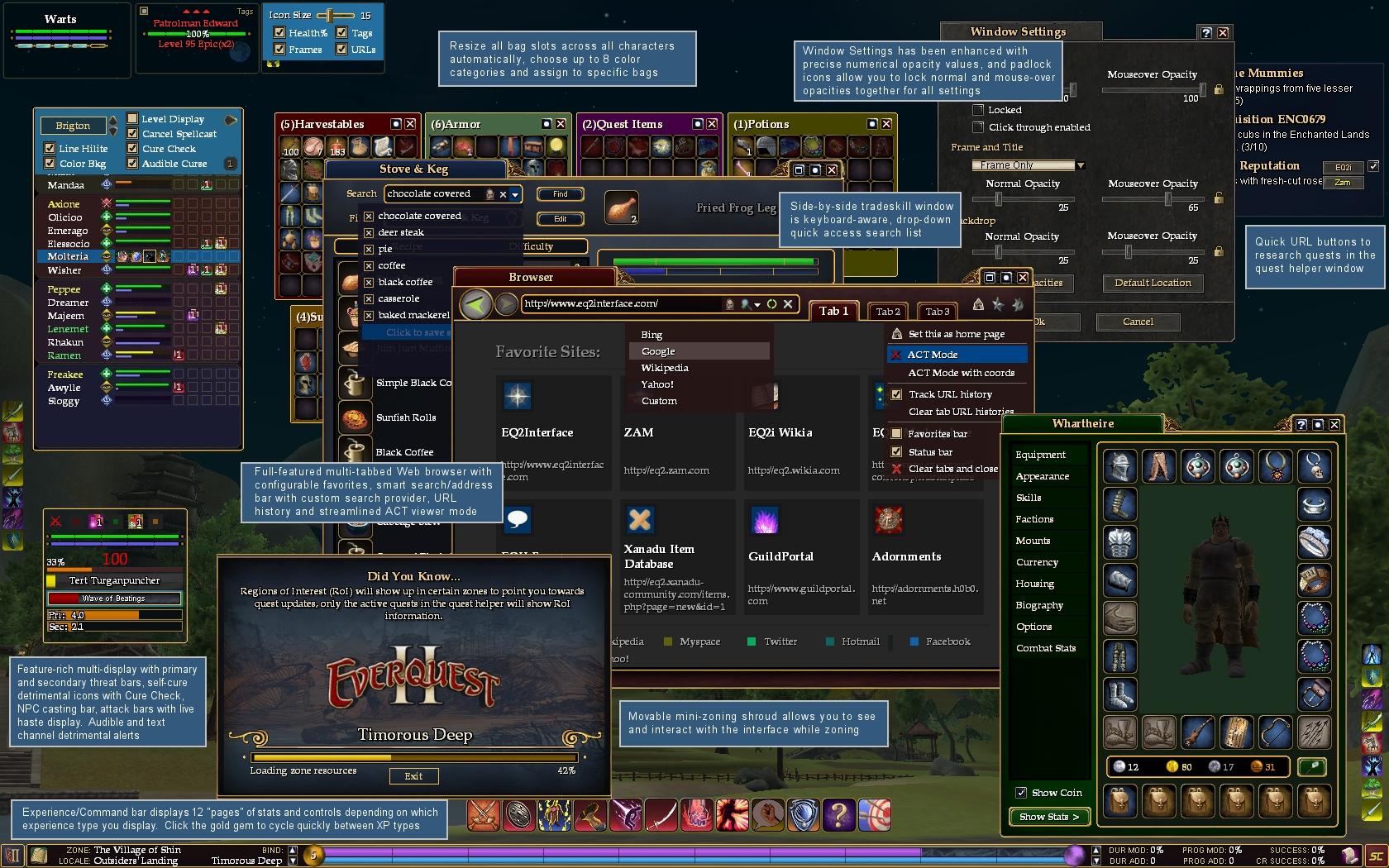
DarqUI v2.21.5 Window Pieces
 
Click to enlarge 

Views: 0
Size: 388.88 Kb
Dimensions: 1680 x 1050
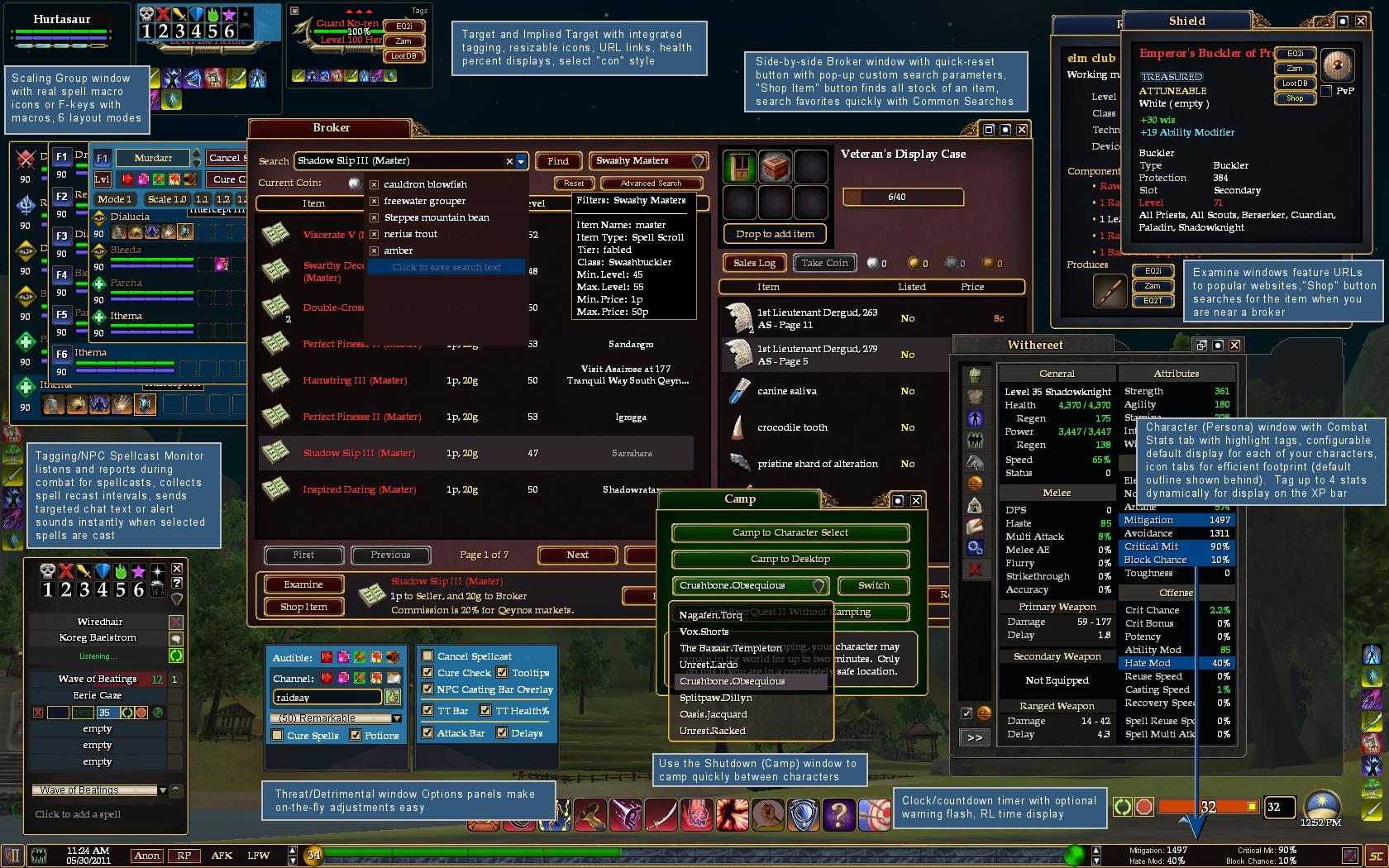
DarqUI v2.21.5 Window Pieces
 
Click to enlarge 

Views: 0
Size: 371.11 Kb
Dimensions: 1400 x 1400
DarqUI v2.3 Window Utility
 
Description
DarqUI v2.3.3.1


April 30, 2013: Scars of the Awakened


A new version of the DarqUI Window Utility is available. Version 2.3.3.1 has the following changes:

* Added one-time automatic update process for mage Cure Magic spell
* Added Cure Magic to internal spell database, removed deprecated cures
* Fixed a bug preventing some pop-up messages from appearing
* May 2: Updated Character window Housing tab to accommodate new access buttons.


New or Updated UI Features:

* Added Pet Assist controls to Pet window to match new game feature
* Group and Raid windows updated for new Mage Cure Magic spell
* Updated color theme and skin artwork to match default updates
* Updated Login window for new Scars of the Awakened artwork


You may continue to use the previous version of the utility to download current versions of the DarqUI files, but you must have utility version 2.3.3.1 in order to get the newest customization features.


Note about color themes: Some players have reported an access-denied message when updating color themes. If this happens to you, delete the entire theme from your DarqUI folder and re-download.

---------------------------------------------------


April 11, 2013: DarqUI v2.3.3 New UI Features

* New Prestige Stack Monitor window
* New Target/Implied Target Distance Monitor
* New Raid Health and Power Monitor
* Raid window now has 5 spell icons
* Maintained, Detrimental and Spell Effects icons are now resizable
* Improved Group window mentored status display
* Simplified Raid window display mode selection ("Mode" on right-click menu)
* Zoning window size and location are now saved for each character


A new version of the DarqUI Window Utility, version 2.3.3, is now available. New features include:
  • Added Prestige Stack Monitor tab to accommodate new DarqUI interface piece.
  • Maintained Effects window (Misc tab): added icon size, font breakpoint and scrollable options.
  • Tradeskills window (Misc tab): added controls for Experimentation event timer and sound.
  • Misc tab: added Spell Effects and Detrimental Effects window option panels.
  • Target tab: added controls for the new DarqUI Target Distance Alerts feature.
  • Target/Implied Target: removed icon size controls to match in-game changes.
  • Quick Setup: state of "Padlocked" character slots in Quick Setup is now saved between sessions.
  • Settings tab: added optional logging for auto-check and updates.
  • Auto-check: Improved the logic of after-midnight time offsets for certain time zones.
  • Updates: DarqUI Live alternate version files are detected and bypassed in the UI folder.
  • All custom color themes and skins now have version numbers and are included in update checks.
  • Raid and group window: data cells can now be edited by double-clicking or right-clicking.
  • Raid window: added fifth spell icon to button definitions to accommodate updated feature.
  • Raid window: removed Window Mode controls (deprecated), added Health and Power Monitor controls.
  • Raid window: added Detrimental Effects placeholders control.
  • Misc tab: XML files on disk can be viewed from an icon on their option panels.
  • Added cureplayer spell suggestions to the internal spell database.


--------------------------------------------------


Chains of Eternity UI Changes:


Bags
* Container transparency and frame visibility can now be controlled globally
* New Bag Options (sorting) button can be visible always or only on mouseover

Browser
* Added Minimize to Titlebar feature
* New arrow controls above tabs allow you to copy the contents of one tab to another
* Surf to any URL and save the location on your Favorites List directly from the Browser window

Character Window
* Added Krono interface to Currency tab, added link button to online Krono FAQ
* Added mercenary suspension dropdown to match default behavior
* Added dropdown selection to Passive Effects tab to match default
* Added new Experimentation stats to sidebar

Custom Color Themes and Skins
* Updated Forest, Earth, Drakah, VanGurK and Fossil themes with CoE graphics.
* Version 2.3.3+ Skins and Themes now have version numbers and are included in update checks like other DarqUI windows.

Examine Window
* Added new Skill progressbars to match default

Experience/Stats Bar
* Added PSC components to match default
* Health/Power stats enlarged to accommodate 100K+ values

Login/Account Window
* Updated graphics references for the new expansion artwork
* Added ProSeiben components to match default

Maintained Window
* Added new Prestige stack counter elements to Maintained icons. The DarqUI stack counters use larger, colored text and gray background shrouds for enhanced visibility
* Maintained icons and text areas can now be resized. Icon fonts grow/shrink to accommodate icon size

Market Window
* Increased detection of adventure and tradeskill levels in Advanced Search to 95

New Prestige Stack Monitor Window
* Up to two stack-based Prestige spells monitored separately from Maintained window
* Optional warning flashes when stack value setpoint is reached
* Optional follow-up spell button for each Prestige spell
* Prestige Monitor can track other Maintained spells

Raid Window
* 5 spell icons instead of 4
* Simplified display mode selection ("Advanced" and "Basic" on right-click context menu)
* New Raid Health and Power Monitor

Target/Implied Target Windows
* Added new Target Distance elements to match default
* New Target/Implied Target Distance Monitor

Threat/Detriment Window
* CombatIcons, UseRobustPotionsOnly and PotionCureCheck settings now have customization options in the window utility

New Tracking Window
* Smaller frame and border elements for more efficient footprint
* One-button shiny tracking filter for the new Prestige harvestable tracking skill and tinkered divining rods
* Hide controls when you only want to see the tracking list
* The tracking window can't be accidentally closed by hitting the Esc key
* Cursor-friendly filter textbox with reset button
* Window can be resized very small but uses default font size
* Tracking window auto-closes between zones in harvestable tracking mode

Tradeskills Window
* Integrated new Experimentation tab into Tradeskills window to match default
* Added new recipe Quantity selector to match default
* Added Refining text element to match default

Window Settings
* Locate, show/hide, center and default location for windows that are offscreen or have otherwise become hidden

Mini-Zoning Shroud
* Extremely long zone names now display correctly
* Adjusted window boundaries to more closely match random zoning artwork proportions
* Mini-Zoning shroud is now resizable; size and position are now saved with uisettings

For current DarqUI users: Download, unzip and replace the DarqUI Window Utility with version 2.3.2. Run the new utility as Administrator and follow the prompts to retrieve updates. If you have been keeping backups when you save, you will have the option of merging your current customizations with the new files immediately. Choose "Auto" at the top of the Updates tab to merge settings without prompting.

For new users: Download, unzip and run the DarqUI Window Utility. You can create a new folder in your EverQuest II\UI folder, or the program will create it for you. Follow the prompts to retrieve your new UI files. Click here to view a short walkthrough for first-time setup.


Recently Added or Updated DarqUI Windows:
-------------------------------------------------------------------------


Raid Health and Power Monitor


Tracking Window


DarqUI Updates


Keep your DarqUI installation current with the new system tray icon that checks daily in the background for new or updated DarqUI files.


Maintained, Spell Effects and Detrimental Effects


Window Settings


Use "padlock" icons and numerical display to link normal and mouse-over transparencies together precisely. Locate, show, center or move to default location windows that have moved off-screen or have become inadvertently hidden.


Quick Setup


If you have certain characters that have been heavily customized in the DarqUI Window Utility, use the padlock icons to bypass those characters while automatically setting up others.


Set Prices -- Commission Calculator


Pet and Mercenary Windows


One-button mercenary/warder/pet pulls: Use the slider control to choose a backoff delay between 1 and 15 seconds, then press the pull button to send your pet, warder or mercenary to the current target. When the pet acquires hate, the backoff timer will start and the pet will automatically move toward you with the mob until the preset backoff time expires. The pet will then turn and resume attacking, automatically restoring preserve_master and preserve_self protection states. Visual feedback inside the window keeps you informed of all actions in the pull sequence. You can interrupt the sequence at any point by pressing one of the command icons.

The Pet window also includes Call, Shrink and Pet Options controls; the Mercenary window includes a button to open the mercenary's tab in the Persona window. Both windows have a sync (close) button that appears when the window is visible but you do not have a pet/mercenary.

The automatic pull feature can be used from a hotbar macro button as well as from the pull button on the window itself. When setting up a macro button, use one of the following commands:

show_window MainHUD.Pet.Pull
show_window MainHUD.Mercenary.Pull

Example:


XP/Stats/Command Bar


Use the DarqUI Window Utility to choose from 15 different left- and right-side stat "pages" for each of the five XP bars: Adventure, Tradeskill, Alternate Advancement, PvP and Guild. When you switch to a different XP bar by clicking the gold gem, the correct stat pages are displayed. You can also scroll through the various pages using controls on the XP/Stats window.


LoginScene Account List


The DarqUI Window Utility does not interact with the personal information in this file, but you can use a text editor to add your accounts (and optionally your passwords) to the dropdown list. If you have several accounts, this window will take the frustration out of switching between them. If you do not configure any accounts, the window will operate like the default.

IMPORTANT: To maintain the security of your personal information, please carefully read all of the instructions in the LoginScene file before making any customizations!


Threat/Detriment Window


Persona Window Note Tabs


Broker Window Price Presets


EQ2U Character Lookup


Configuration Utility


Quick Setup: If setting up your characters in the utility has baffled you in the past, give the new Quick Setup feature a try. With a couple of clicks the utility will find your characters and set up the entire DarqUI interface to take advantage of the character- and class-specific features. New users click here for a quick walk-through.


Spellcast Monitor (Ctrl+Shift+T)


This window listens and reports on player and NPC spellcasting activity. During battle, spells and combat arts frequently are cast so quickly that you don't have time to see and react to them. The spell monitor solves this problem by allowing you to collect and learn spellcasting patterns on an encounter-by-encounter basis. When a spell is cast, the name goes into the next open slot on the list. Each time it's recast the spell slot lights up for several seconds and optionally plays a sound or sends a line of text into chat.

Spellcast History: The Spellcast Monitor also includes an optional spell history overlay. Wade into battle and the Spellcast Monitor will begin collecting player or NPC spells and cast times. Countdown timer bars can be configured for specific recast estimates, or the monitor can display a history of pre-casting and casting intervals for you. When the encounter is over, the timers shut down automatically.

Audible and Chat Channel Announcements: New shortcuts in the DarqUI setup utility make it easy to add your target's name (%TT), implied target's name (%IT), and the name of the spell being cast (%S) into chat channel announcements. You can set up alerts prior to an encounter by choosing from the configurable preset dropdown, type the spell names manually, or use the auto-fill feature when you target a specific NPC. This window has proven useful in learning spellcasting patterns in raid encounters, but it's also helpful and fun to play with in solo and group gameplay. Since a large part of EQII combat is reacting to enemy spellcasts, the spell monitor makes it less necessary to stay glued to the casting bar.


Beastlord and Savagery

The Savagery window can be resized horizontally, and the skull graphic can be hidden by choosing Frame Only from window settings. Remove the frame completely by choosing None.

Using the DarqUI Window Utility you can choose an icon size and padding for the minimized Beastlord bar (the version without the paw graphic) which will stick between sessions. The default is set to 32x32 with 1 pixel padding. Move the mini-bar by using the left and top edges of the window, and resize the mini-bar using right side and bottom edges.


Mercenary


Payday tracking has been added to the DarqUI Mercenary and Persona windows. A uniquely-colored progress bar tracks your mercenary's pay graphically, and with 2 minutes remaining before the next payday the Mercenary window flashes briefly as a reminder and plays an alert sound (both configurable). Having this information allows you to suspend the mercenary if needed before you get charged for another 30 minutes.


Casting Bar


This is a resizable casting bar, with text font size that adjusts as you change the size of the bar. You can optionally change the bar color, turn on/off the text resizing feature, and add a dark gray backdrop behind the bar for theme skins that leave the casting bar background transparent.


Hotbar


The DarqUI Hotbar includes a spell recast "cooldown" timer overlay. Choose "Frame and Titlebar" from the Window Settings menu to activate the timers for any hotbar. If you want timers but no frame, set the frame sliders to zero. Timer text appears in the lower-left corner of each icon and resizes as you change the size of the hotbar icons. When the spell or combat art is almost ready to be recast, the timer changes color. All of the timer defaults are preset from the downloader, or you can optionally customize the warning interval, text colors and font size breakpoints.


Character (Persona) Window


The DarqUI Character window offers custom controls for each of your characters: decide whether to show or hide the stats side-panel by default, and choose which of the sub-sections (Melee, Defense, etc.) to automatically expand or close. Use icons instead of text labels for the page tabs for a more efficient window footprint (all characters).

Combat Stats Tab: A new Combat Stats tab has been added to the main body of the Character window that contains all the stats from the side tab except for Tradeskill, Miscellaneous and PvP. This may eliminate the need to pop out the side panel at all most of the time. Click on any stat to toggle a colored highlight behind it, which will stay highlighted until you toggle it off or log out. Give this a try and you'll see how much easier it is to track your favorite stats.

Live Combat Stat Display: When you use the highlighter on the Combat Stats tab, your first four stat choices will be displayed on a new special page on the Experience bar. Scroll to the Custom Stats page on the XP bar, and dynamically choose the live stats you want to track without keeping the Persona window open.

Notes: New Notes tabs on the Biography page act as a handy "blackboard" to keep to-do lists or other reminders for each character. A shared notes tab lets you save notes on one character that can be read by all characters.

EQ2Inventory and Stats Integration: Not sure if one of your alts has a certain item, but you don't have time to log over and check? Use the EQ2Inventory controls to log and display inventories (bags, bank, shared bank, house vault) and stats for all of your characters. The EQ2Inventory program (also available on EQ2Interface) finds, loads, links and reports on inventories and stats using special log files generated by the Character window.

(See composite screenshots for additional images)


Web Browser


The in-game Web browser has been completely remodeled to work more like a mainstream browser. The address bar doubles as a smart search box: type your search terms directly into the address bar and your preferred search provider will deliver the result. The multi-tabbed interface maintains page contents even if you close the window. Choose or create website favorites with icons. Track your URL history. Decide on a new home page with a single click.

ACT Mode: Switching to this new mode from the Tools menu converts the browser into a streamlined, single-pane viewer that automatically displays live ACT spell timers and encounter data. You can configure the viewer to open in the same place on your screen each time you use it, and the local ACT file does not have to be your home page. (You must turn on the HTML export feature in the Advanced Combat Tracker program in order to display it.) Leaving ACT Mode puts the normal browser back where you left it, so you can switch between modes seamlessly. Using ACT with the in-game browser is finally effortless.


Size and Color Bags


One of the time-consuming parts of the EverQuest II interface, especially when you create a new character, is resizing each individual bag and bank box to the slot size and spacing that you prefer. New controls in version 2.21 allow you to choose a standardized slot size and spacing for all bags across all of your characters, even the ones you haven't created yet. If you decide later on a different size, change the value in the utility and all of your containers will respond the next time you open them. (The auto-bag size feature is turned off by default when you initially download the interface -- you must choose a preferred size and turn it on manually from the containers tab in the utility.)

You can choose up to 8 background colors and associate those colors with certain containers. Use a green bag for items to be sold at the vendor, a red container for raid armor, the choice is yours. You can also choose a default color for all containers that do not have a color category.


Broker Window


Easy Search Filters: A new Quick Reset button on the main window activates when you run a custom search, either manually or through a Saved Search filter. Mousing over the Reset button will give you a pop-up listing of your current search parameters. Click the Reset button to quickly clear the filters without opening the custom filter dialog.

A "Shop Item" button has been added to the Buy side, which functions similarly to the Search Broker control on the Sell side. Select an item from a mixed search result, then click Shop Item to find all sellers who have the selected item for sale.

Broker Search Favorites: As a more lightweight alternative to dropdowns with many preset items to sort through, the DarqUI Broker window offers a simple list of 10 common searches for each character. Search once for the item, then click an empty slot on the search list to save it as a "favorite." This gives you fast, customized one-click access to each character's favorite broker searches.

Preset Prices: Pricing and listing many items with similar prices is easy using the preset price list. Set up to 6 custom prices for each character, then price and list any item instantly with a couple of clicks. Values can be set and changed without using the setup utility, and presets display with the correct coin colors for each denomination.

(See composite screenshots for images)


Tradeskills Window


The DarqUI Tradeskill window offers single-pane and side-by-side crafting views. Select a recipe from the list on the left-hand side, and then use either the mouse or the keyboard to craft the item. Press Enter twice to repeat a combine; press Esc to stop production. Speed up writs by searching your recipe books with the search filters or the drop-down favorites list while you are in the middle of a combine.

Audible and Visual Event Timer: When performing combines, you can optionally display a graphical cooldown bar for the event timer, similar to the way spells work on your hotbars. In addition, you can add an audible signal so you'll never miss reacting to another crafting event. Toggle both of these features on and off at any time using controls on the event display area.

Recipe Memory: The Last Recipe button solves a frequent annoyance: Often you will use the tradeskill search box to find a recipe in your book for a quest or writ, only to find out that you need to go back to the guild hall to craft it, or close the tradeskill window for some other reason. When you get to the crafting station, you have to search for the recipe all over again. Instead, use the clock icon to instantly recall your last recipe search -- a simple but handy feature.


Examine Window


A new "Shop" control makes it easy to shop the Broker for items and recipe scrolls from the Examine window. If you are using the DarqUI Broker window, the Shop button appears only when you are at the Broker (or the bulletin board in your house). If you use the default Broker window or a different custom Broker window, the Shop button always appears alongside the website URL shortcuts.

(See composite screenshots for images)


New Theme

A "Fossil" theme is available as an option on the updater. This skin features a neutral color theme with most of the brightly colored elements from the default UI remodeled into a more organic cut-stone appearance. There are also two adaptations of full skins by Drakah and gurkoz on the updater. Both of these artists have done an amazing job of capturing the look and feel of their respective interfaces. If you ever played Vanguard or EverQuest II in the early days, these themes are guaranteed to give you a smile, and you can switch between them with a click of the mouse.


------------------------

DarqUI Version 2.3 includes the following features:

DarqUI Window Configuration and Updater Utility
• Customization tabs for Group, Raid, Threat/Detrimental, Experience, Shutdown (Camp), Target, Implied Target, Bags, Tagging/Spell Monitor, Persona and Browser windows
• Quick Setup feature finds your characters and configures the entire DarqUI interface automatically
• Active context help sections give you basic guidance for the controls on each main tab
• Scan and install new file versions with full-featured, integrated updater
• Seamlessly merge previous character customizations into new file versions
• Import/Export spells between Group and Raid windows
• Share character names, levels and classes between UI pieces automatically
• Configure UI mods for up to eight characters on any server
• Choose level- and class-aware spells from the spell suggestions database, or create your own
• Optional English and German language external spell databases (CSV format)
• Choose names or ID numbers to reference spells with a single checkbox
• All Spell ID numbers are pre-loaded in the database
• International Compatibility Mode reduces spell name miscues for non-US clients
• Click "Make Default" button to make the necessary updates without using Notepad

Scalable Group Window with Real Spell Icons, Targeted Macro Buttons and Click-to-Cure
• True Window Scaling from 1.0x to 1.9x original size
• Full-featured click-to-cure interface with Advanced Cure Check and macro extensions
• Targeted spell buttons with real spell icons, tell/raidsay/groupsay/macro extensions
• Macro facility is compatible with Battlegrounds naming convention
• Six unique window layout modes, selectable via Utility or in-game
• Each character can choose a group window default layout mode
• Audible group detrimental alerts, selectable from the Options panel
• Programmable, targeted F-key icons for group members

Raid Window with Real Spell Icons, Targeted Macro Buttons and Click-to-Cure
• Full-featured click-to-cure interface with Advanced Cure Check and macro extensions
• Targeted spell buttons with real spell icons, tell/raidsay/groupsay/macro extensions
• Macro facility is Battlegrounds compatible
• Eight unique window layout modes, selectable via Utility or in-game
• Choose transparent or "Classic" colored raid group background panels
• Compact arrangement, uses standard-size game fonts for legibility
• Audible raidwide Curse alert, toggle from the Options panel in-game

Tagging/Spellcast Monitor
• "Clear all tags" function added to standard tagging interface
• Listen and report on opponent and NPC combat spellcasting behavior
• Assign visual, audible, or chat text alerts for spellcasts
• Mnemonics for Target, Implied Target and spell name in chat text alerts
• Graphical spellcast interval timers, programmable on-the-fly or as presets
• Automatically preload monitored spells by targeting preconfigured NPCs
• Save and load banks of NPC spells, timers and alerts in groups of 10
• Spellcast Monitor reports pre-casting and recast interval histories
• Timers start and stop automatically when encounter begins/ends
• Choose from four high-contrast spell timer countdown bar colors
• Append an extra sound to any chat text alert, allowing you to see and hear the alert

Threat/Detrimental Window with Potion and Spell Cures, Melee Attack Timing Bar, Spellcast Bar
• Feature-rich replacement for the default Threat meter
• Class- and level-aware spell and potion self-cures with detrimental icons
• Audible and Text Chat detrimental alerts
• Self Health and Power bars
• Target and Target's Target health bars and percentages
• Numeric and graphical primary and secondary threat bars
• Melee attack timing bars for Primary, Secondary and Ranged
• Real-time weapon delay display
• Spellcasting Bar Overlay, toggle visibility from the Options panel
• Target's Target Health Percentage display over Health Bar

Web Browser
• Remodeled, multi-tabbed browser interface operates more like a mainstream browser
• Choose or create up to 10 favorite websites accessible from menu or favorites toolstrip
• Smart address/search bar with configurable search providers
• Track recent URL history for each tab separately
• Decide on a new home page with a single click
• ACT (Advanced Combat Tracker) Mode offers a streamlined ACT parse viewer
• Configure ACT Mode and standard browser separately; both windows remember their locations

Experience/Stats/Command Bar
• 14 scrollable stat and widget pages in a more efficient dockable XP Bar footprint
• Automatically load left and right side default stats for XP, Tradeskills, AA and PvP for each character
• Controls page for master volume, music volume, "night" vision, personal torch, pet visibility and mini-map
• Click the gold gem to cycle quickly between adventure, tradeskill and AA experience bars.
• Choose four combat stats from the Persona window Combat Stats tab to display dynamically on the Custom Stats page.

Broker Window
• A simple side-by-side version of the Broker Window
• Set search parameters for current character's Adventure or Tradeskill class and level
• Level shift +5 and -5 buttons on Broker search dialog
• Buy-side Search Reset button with pop-up custom search filter display
• "Shop Item" button searches for the selected item on the Buy side, similar to "Search Broker" on the Sell side
• Common searches dropdown gives quick access to 10 of your favorite searches
• Choose single-pane or side-by-side with frame button or default file setting

Character (Persona) Window
• Choose to show/hide stats panel, and specific stat categories, for each of your characters
• Combat Stats tab shows all stats except misc, PvP and tradeskills without opening the side-panel
• Handy stat hilighter for the Combat Stats tab makes selected stats easy to find
• Dynamically display up to four hilighted stats on the XP bar
• Open/close stats side panel from the left or right side
• Choose icon tabs instead of text for a more efficient window footprint (all characters)
• Mercenary payday tracking lets you save coin by suspending mercenary intelligently
• EQ2Inventory button tracks your inventory, bank, shared bank, and house vault
• EQ2Inventory Stats button logs your character stats historically, for use with the EQ2Inventory program, also on EQ2Interface.com

Tradeskills
• Choose single-pane or side-by-side recipe book with frame button or default setting
• Instantly recall your last recipe search after closing the book or zoning
• Fully keyboard aware controls make repeated combines easy
• Recipe favorites dropdown keeps frequent recipe searches handy for each character
• Recipe selection shroud while combining prevents bugged window mishaps
• Configurable graphical event cycle timer and audible event signal when crafting a recipe

Hotbar
• Hotbar window with optional spell recast "cooldown" timers
• Timer display font resizes as you change the hotbar icon size
• Digits change to warning color as recast approaches
• Configurable font size breakpoints, warning color and warning time interval
• Timer options can be configured for each hotbar separately

Bags and Containers
• Automatically resize all inventory, bank and vault bag sizes and icon padding to your specifications
• Recolor specific bags to any color you choose to assist with organizing your various inventories
• Spruce up your inventories by choosing a new default color for all uncustomized containers

Window Settings
• OCD-aware numerical values take the guesswork out of setting transparency for your windows
• Use the padlock icons to lock normal and mouse-over opacities together for window, frame/titlebar and backdrop

Mercenary
• Mercenary salary tracking bar with informative tooltip
• Configurable 2-minute audible and visual warnings when payday is approaching

Casting Bar
• Resizable casting bar, font size adapts to horizontal size
• Customizable bar color and background shroud for custom themes that render the bar transparent
• Turn on/off text resizing feature

Item, Effect, Spell and Quest Examine Web Links
• EQ2i.com, Zam.com and Lootdb.com web links for item, effect and spell examine windows
• EQtraders.com, Zam.com and Lootdb.com web links for recipe examine windows
• EQ2i.com and Zam.com web links in mini-Quest Helper window
• Smart "Shop" button on item and spell scroll examine windows offers automatic search at the Broker

Movable Mini-Zoning Window
• A smaller, movable adaptation of the default zoning shroud
• Allows you to see your chat windows and have some limited interaction with the interface while zoning

Camp Window
• Switch immediately to an alt without camping to the character select screen
• Camp to another character, character select, account select, or desktop

Clock and Countdown Timer
• Sun-and-moon game clock with current Earth-time digital display
• Easy to use collapsible countdown timer with optional flashing warning

Optional Color Themes
• Interface color themes offer a change of pace from default Red and Blue themes
• Choose between new Forest (green) and Earth (gray/brown) color themes
• Choose from three full skin adaptations for a more dramatic change
• Automatically configure the UI for a new theme with a click of the mouse
• Create your own theme that can be selected in the Utility

Target/Implied Target Windows
• Tagtarget interface integrated into target window
• Added "clear all tags" function
• Resize target/implied buff icons larger or smaller with slidebar
• Health percentage overlays
• Toggle fancy "con" brackets on/off
• One-click URL links to popular websites for current target/implied target


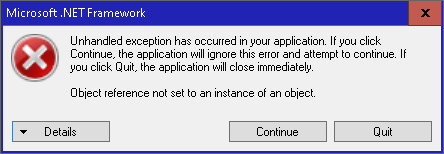
Please note that you will need Microsoft .NET Framework 3.5 to run the utility. You probably already have it. If you run the utility and get a .NET error message, Click this link to download .NET 3.5:

http://www.microsoft.com/downloads/e...displaylang=en


__
Archive List (Old Versions)
File Name
Version
Size
Author
Date
2.33
2.49 MB
Darqwood
04-11-2013 08:29 PM
2.32
2.47 MB
Darqwood
11-14-2012 08:14 AM
2.3
2.36 MB
Darqwood
03-16-2012 06:39 PM
2.21.5
1.80 MB
Darqwood
06-19-2011 01:24 PM
2.21
1.72 MB
Darqwood
05-31-2011 08:27 PM
2.2
1.59 MB
Darqwood
02-26-2011 11:14 AM
2.0
1.61 MB
Darqwood
08-24-2010 02:08 PM
File Statistics
User Rating:
5 out of 5 with 23 votes
Downloads: 16099
Views: 152752
Favorites: 51
Uploaded By:
 
Last Modified: 05-02-2013 07:07 PM by Darqwood    

View Pictures. Download Now! Post A Comment
Remove Ads


Post A Reply
Author Comments Comment Options
Old 06-06-2013, 12:20 PM  
Darqwood
A Fallen Diplomat
Interface Author - Click to view interfaces

Server: Antonia Bayle
Forum posts: 54
File comments: 294
Uploads: 7
Re: Great ,, Simply best ui.

Quote:
Originally posted by Zhadez
Pls add quick Invite from guild window.. plsssss

Hate typing 24 named when setting up raids and so on,, guildies have the most retarded names sometimes


Thx Again for the great work


Zhadez, thanks for your post. Group and Raid invite buttons have been added to the Guild window. Use the updater to get the new file.


.
Darqwood is offline Report comment to moderator   Reply With Quote Reply With Quote
Old 06-03-2013, 04:09 PM  
Zhadez
A Coastal Crab

Server: Unkown
Forum posts: 0
File comments: 9
Uploads: 0
Great ,, Simply best ui.

Pls add quick Invite from guild window.. plsssss

Hate typing 24 named when setting up raids and so on,, guildies have the most retarded names sometimes


Thx Again for the great work
Zhadez is offline Report comment to moderator   Reply With Quote Reply With Quote
Old 05-18-2013, 07:01 PM  
Darqwood
A Fallen Diplomat
Interface Author - Click to view interfaces

Server: Antonia Bayle
Forum posts: 54
File comments: 294
Uploads: 7
Re: Nice Job

Quote:
Originally posted by Turzen
Love what you've done. I've added a few of your pieces to my already combined UI, This mix-n-match setup I have . "Fetish, Profit, Drums and now DarqUI" make a good combination with little editing on my part to make it all work together. No I'm not uploading it... But Thanks for your work on the pieces I'm using...

Eshaac


Thank you, Eshaac!


.
Darqwood is offline Report comment to moderator   Reply With Quote Reply With Quote
Old 05-18-2013, 06:46 AM  
Eshaac
Premium Member
 
Eshaac's Avatar
Interface Author - Click to view interfaces

Server: Test
Forum posts: 157
File comments: 29
Uploads: 6
Thumbs Up Nice Job

Love what you've done. I've added a few of your pieces to my already combined UI, This mix-n-match setup I have . "Fetish, Profit, Drums and now DarqUI" make a good combination with little editing on my part to make it all work together. No I'm not uploading it... But Thanks for your work on the pieces I'm using...

Eshaac
Eshaac is offline Report comment to moderator   Reply With Quote Reply With Quote
Old 05-01-2013, 10:31 PM  
Lovebrat
A Crazed Gnoll

Server: Guk
Forum posts: 22
File comments: 22
Uploads: 0
OMG I am such a dorkette - told you I was tired. Of COURSE I can't go past level 92 I haven't got COE yet. So embaressed - but thanks Darq for your help - as if you don't have enough to do. Off to slap myself silly =)
Lovebrat is offline Report comment to moderator   Reply With Quote Reply With Quote
Old 05-01-2013, 04:49 PM  
Darqwood
A Fallen Diplomat
Interface Author - Click to view interfaces

Server: Antonia Bayle
Forum posts: 54
File comments: 294
Uploads: 7
Re: AA/Experience %

Quote:
Originally posted by Lovebrat
<3 your UI & util. Since this new Scars bizzo came out, I am unable to slide the slider and change my AA and combat XP percentages. Mousing over the slider is giving me the "grab" icon and merely moving the window around. Sorry for my lack of technical terminology I'm a little tired - and old =)

I'm not sure what the problem is but I am sure someone will let me know please and thank you and g'night

Doh and yes I have updated to 2.3.3.1 and amended all my files -- ta!

Lovebrat, DarqUI does not modify the AA/Prestige window, so you are seeing default behavior on that window. Make sure you are not trying to change the percentage on a character that is already maxed out. Also if I remember correctly, subscription level has an effect on the AA slider -- gold, silver, etc.


.
Darqwood is offline Report comment to moderator   Reply With Quote Reply With Quote
Old 05-01-2013, 09:24 AM  
Lovebrat
A Crazed Gnoll

Server: Guk
Forum posts: 22
File comments: 22
Uploads: 0
AA/Experience %

<3 your UI & util. Since this new Scars bizzo came out, I am unable to slide the slider and change my AA and combat XP percentages. Mousing over the slider is giving me the "grab" icon and merely moving the window around. Sorry for my lack of technical terminology I'm a little tired - and old =)

I'm not sure what the problem is but I am sure someone will let me know please and thank you and g'night

Doh and yes I have updated to 2.3.3.1 and amended all my files -- ta!

Last edited by Lovebrat : 05-01-2013 at 09:26 AM.
Lovebrat is offline Report comment to moderator   Reply With Quote Reply With Quote
Old 04-14-2013, 10:47 AM  
Darqwood
A Fallen Diplomat
Interface Author - Click to view interfaces

Server: Antonia Bayle
Forum posts: 54
File comments: 294
Uploads: 7
Quote:
Originally posted by Mermut
I'm already used the advanced mode which shows the place holders for all the 'cures'... but I was unable to adjust the window to have the hotkeys over the health and power. I started the raid with it and the hotkeys, including the cure curse weren't working. Fortunately I had the zip file with 2.3.2 in it and restored that, then updated again but kept the old raid file. I'll experiment some more to see if the setting issues are on my side, but I did notice the lose of the 'style' on the raid setting that is still in the group setting.


I have/had cure curse set to announce to group and raid chat on click to cure and this is the what was put into chat
group: Parent.Spells1.Spell10.GSay
raid: Parent.Spells1.Spell10.RSay Liepha

Both should have been **** CURING CURSE on Liepha

Edit/note: Not only was the group/raid say incorrect, the cure curse did not go off.

Mermut, there is an updated DarqUI Raid window that addresses the above problem with Cure Check and cure class detection. Use the updater to get the new version and post here if you have any more trouble. Thank you for the heads-up on this.

Also, make sure you choose "Basic" mode from the right-click menu to get the icons to show up over the health bars -- I hijacked the mode function, so advanced and basic only control the location of the DarqUI spell icons. Cures are now always visible in both modes.


.
Darqwood is offline Report comment to moderator   Reply With Quote Reply With Quote
Old 04-13-2013, 02:51 PM  
Mermut
A Coastal Crab
 
Mermut's Avatar

Server: Antonia Bayle
Forum posts: 0
File comments: 5
Uploads: 0
Quote:
Originally posted by Darqwood
Mermut, you can toggle between display modes by right-clicking the Raid window and choosing "Basic" or "Advanced." I knew this would likely cause some initial confusion, but moving this feature to the right-click menu cleaned up the custom code substantially.


.
I'm already used the advanced mode which shows the place holders for all the 'cures'... but I was unable to adjust the window to have the hotkeys over the health and power. I started the raid with it and the hotkeys, including the cure curse weren't working. Fortunately I had the zip file with 2.3.2 in it and restored that, then updated again but kept the old raid file. I'll experiment some more to see if the setting issues are on my side, but I did notice the lose of the 'style' on the raid setting that is still in the group setting.


I have/had cure curse set to announce to group and raid chat on click to cure and this is the what was put into chat
group: Parent.Spells1.Spell10.GSay
raid: Parent.Spells1.Spell10.RSay Liepha

Both should have been **** CURING CURSE on Liepha

Edit/note: Not only was the group/raid say incorrect, the cure curse did not go off.

Last edited by Mermut : 04-13-2013 at 04:37 PM.
Mermut is offline Report comment to moderator   Reply With Quote Reply With Quote
Old 04-13-2013, 07:58 AM  
Darqwood
A Fallen Diplomat
Interface Author - Click to view interfaces

Server: Antonia Bayle
Forum posts: 54
File comments: 294
Uploads: 7
Quote:
Originally posted by Mermut
It looks like the option to have the quick keys over the health/power bars in the raid window have been lost. The option still exists for the group window, thankfully, but would you please restore the ability to set the raid window the same way again.
Thanks.

Note: the only place for the hotkeys to be in the raid window right now is to the right of the cures.. which makes the raid window a 1/4 wider then it is when the hotkeys are 'over' the health/power bars.

Mermut, you can toggle between display modes by right-clicking the Raid window and choosing "Basic" or "Advanced." I knew this would likely cause some initial confusion, but moving this feature to the right-click menu cleaned up the custom code substantially.


.
Darqwood is offline Report comment to moderator   Reply With Quote Reply With Quote
Old 04-12-2013, 08:14 PM  
Mermut
A Coastal Crab
 
Mermut's Avatar

Server: Antonia Bayle
Forum posts: 0
File comments: 5
Uploads: 0
It looks like the option to have the quick keys over the health/power bars in the raid window have been lost. The option still exists for the group window, thankfully, but would you please restore the ability to set the raid window the same way again.
Thanks.

Note: the only place for the hotkeys to be in the raid window right now is to the right of the cures.. which makes the raid window a 1/4 wider then it is when the hotkeys are 'over' the health/power bars.

Last edited by Mermut : 04-12-2013 at 08:48 PM.
Mermut is offline Report comment to moderator   Reply With Quote Reply With Quote
Old 04-12-2013, 06:35 PM  
Darwa
A Young Mystail Rat

Server: Antonia Bayle
Forum posts: 4
File comments: 6
Uploads: 0
Quote:
Originally posted by Darqwood
Darwa, the group window did not change from the previous version aside from cleaning up the level display for mentored characters. Open the utility and tab through your characters to make sure the spells look right. You might also try saving the group window again from the utility. If characters are still not switching for you, zip and send your group window to darqwood at hotmail dot com (don't post it here), and I'll see if I can figure out what's up.


.
I found out that it only occurred when toon A was the first one loaded up, and not if toons B, C, D etc were first. I decided to reload the spells for toon A using the utility, saved, then loaded up the game and the problem is now fixed.

Not an easy one to figure out, but at least it's working as intended now.
Darwa is offline Report comment to moderator   Reply With Quote Reply With Quote
Old 04-12-2013, 12:02 PM  
Darqwood
A Fallen Diplomat
Interface Author - Click to view interfaces

Server: Antonia Bayle
Forum posts: 54
File comments: 294
Uploads: 7
Quote:
Originally posted by Darwa
After updating, if I /camp to toon B, then the group macro skills from toon A are still present. However, the correct skills are displayed if I exit the game then log back in.

Darwa, the group window did not change from the previous version aside from cleaning up the level display for mentored characters. Open the utility and tab through your characters to make sure the spells look right. You might also try saving the group window again from the utility. If characters are still not switching for you, zip and send your group window to darqwood at hotmail dot com (don't post it here), and I'll see if I can figure out what's up.


.
Darqwood is offline Report comment to moderator   Reply With Quote Reply With Quote
Old 04-12-2013, 06:20 AM  
Darwa
A Young Mystail Rat

Server: Antonia Bayle
Forum posts: 4
File comments: 6
Uploads: 0
After updating, if I /camp to toon B, then the group macro skills from toon A are still present. However, the correct skills are displayed if I exit the game then log back in.
Darwa is offline Report comment to moderator   Reply With Quote Reply With Quote
Old 03-31-2013, 11:16 PM  
FieryArcher
A Young Mystail Rat
 
FieryArcher's Avatar

Server: Freeport
Forum posts: 5
File comments: 5
Uploads: 0
Quote:
Originally posted by Darqwood
To use a subset of DarqUI, delete the unwanted XML files from your custom UI folder. The filenames are shown on the Updates tab of the utility when you check for updates. Click the yellow folder icon on the Settings tab to open the folder location in Windows, and then delete the unwanted files. Finally, check the "Skip" column on the Updates tab, which will ignore those files when you get updates in the future. The DarqUI Window Utility itself will not slow down your game, since it does not need to be running while you are playing.

If EQ2MAP is your default custom UI folder, you can tell DarqUI to put its files into that folder (Settings tab on the utility). Or if DarqUI is your default custom folder, you can point EQ2MAP to that folder on the Options window of the EQ2MAP Updater. Both ways work equally well.


.
Thank you very much Darqwood, I will try to install as many as possile the DarqUI's. Your great work is very much appreciated !!!
FieryArcher is offline Report comment to moderator   Reply With Quote Reply With Quote
Post A Reply

 
Category Jump:
Search this Category:
 

All times are GMT -5. The time now is 05:32 AM.


Our Network
EQInterface | EQ2Interface | War.MMOUI | WoWInterface | VGInterface | LoTROInterface | MMOInterface